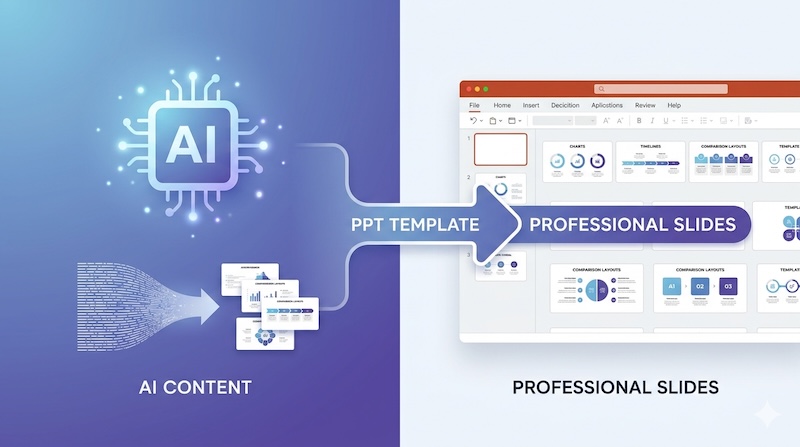
AI generated PPT templates and PowerPoint templates combined in a modern featured image for the guide “How to Use AI‑Generated PPT and PPT Templates to Create Better Presentations” at pptfor.com/downloads

How to Use AI-Generated PPT and PPT Templates to Create Better Presentations

AI presentation tools make it easier than ever to generate slides from text, outlines, or documents. However, if you need consistent branding, professional design, and slides you can reuse across many projects, high-quality PPT templates are still the most reliable way to build strong presentations.

In this article, you will learn how to combine AI‑generated PPT and PPT templates to create business, marketing, and data presentations more efficiently. You can apply these steps directly using ready‑made templates from PPTFor downloads for reports, pitch decks, and training materials.

Step‑by‑Step: How to Use AI‑Generated PPT and PPT Templates

This section explains, in a practical way, how to pair an AI presentation generator with a professional PowerPoint template so you can create polished slides faster and with less back‑and‑forth editing.

  1. Clarify your presentation goal – Before using any AI tool or template, clearly define your audience (e.g., managers, clients, investors), main objective (reporting, pitching, training, selling), and approximate slide count. This helps both AI and templates work in the same direction.
  2. Generate a draft structure using an AI PPT tool – Use an AI presentation maker to turn your outline, notes, or prompt into an initial slide deck. Let the AI suggest slide titles, bullet points, and basic structure so you get a complete first draft without starting from a blank slide.
  3. Choose a professional PPT template from PPTFor – Visit PPTFor downloads and select a template that matches your use case, such as business reports, marketing decks, pitch presentations, or data‑driven slides. Make sure the template includes multiple layout types (title, content, charts, comparison, timeline) so you can reuse it across projects.
  4. Apply the template and import the AI content – Open your selected PPT template and paste the AI‑generated titles, bullet points, and charts into the matching slide layouts. Use the template’s built‑in styles and placeholders instead of manually adjusting fonts, colors, and spacing, so your design stays consistent across all slides.
  5. Refine and simplify each slide – Review every slide and remove unnecessary text, highlight key messages, and keep only the most important visuals. The template already handles layout, hierarchy, and spacing, so your main job is to make the content clear and easy to understand for your audience.
  6. Customize branding and export – Update logo, brand colors, and fonts within the template so the entire deck aligns with your company identity. When the story flows smoothly and the visuals support your message, export the file as PPTX or PDF and reuse the same template structure for future presentations.

Frequently Asked Questions

What is an AI-generated PPT?

An AI‑generated PPT is a slide deck created automatically by an AI tool from text, a brief, or an outline. It typically includes slide titles, bullet points, and a basic structure, which helps you get a first draft quickly without manually creating every slide.

What is a PPT template?

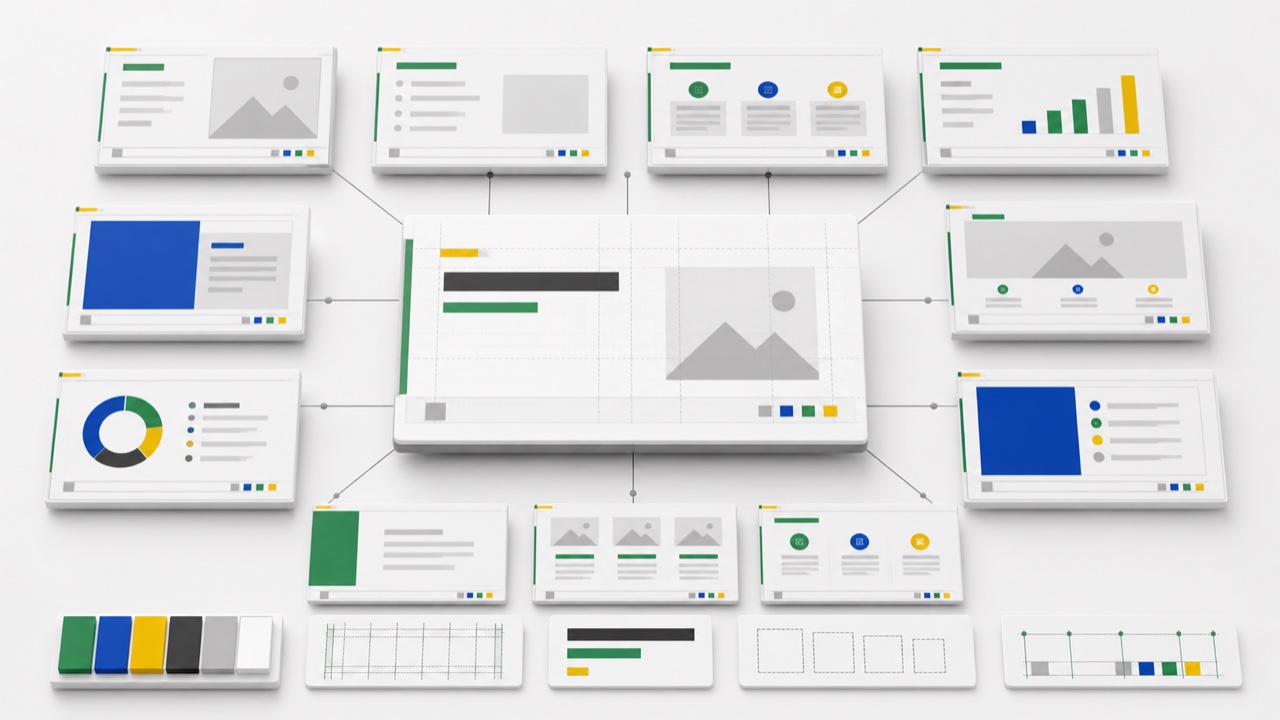
A PPT template is a pre‑designed PowerPoint file that includes layout styles, color schemes, fonts, and placeholder content. You replace the sample text, images, and charts with your own material, which keeps the presentation visually consistent and faster to edit.

Why should I use PPT templates instead of only AI-generated slides?

PPT templates provide a stable, reusable design system that many AI tools do not. They ensure consistent branding, clear visual hierarchy, and predictable layouts, which is especially important for business reports, client decks, and recurring presentations where quality matters more than raw speed.

Can I combine AI‑generated PPT and PPT templates?

Yes. A common best practice is to use an AI tool to generate the content and structure, then place that content into a high‑quality PPT template. This way, AI helps with ideas and outline, while the template ensures a professional, brand‑aligned design.

How do PPT templates help teams create presentations faster?

PPT templates give all team members a shared visual standard, so different people can work on different sections without creating mismatched slides. Because layouts are predefined, team members can focus on content instead of design decisions, which speeds up collaboration and review cycles.

Where can I download PPT templates that work well with AI‑generated content?

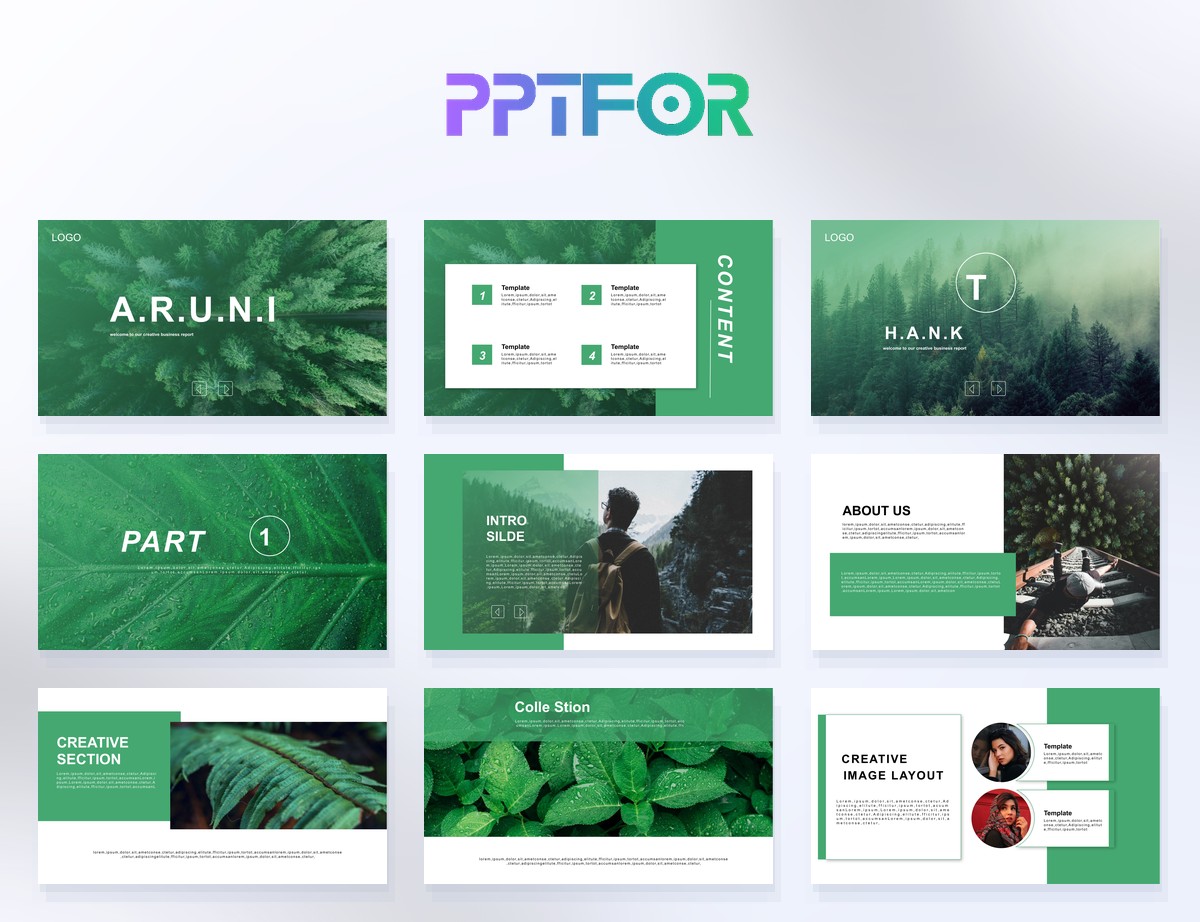
You can download ready‑made PowerPoint templates for business reports, pitch decks, marketing slides, and data presentations from PPTFor downloads. These templates are fully editable, easy to customize, and designed to fit both manually written and AI‑generated content.

Avatar

  May 17, 2026   Pitch Deck Guides

...

Post a Comment

No Comments

Related Items

Marketing Analysis PowerPoint Template 37 slides
Marketing & Sales Presentations Market Analysis PowerPoint Template
pptfor 16 May, 2026
Startup Pitch Deck for Investors Template – Investor‑Ready PPT for Entrepreneurs
Pitch Deck Guides Startup Pitch Deck for Investors Te
pptfor 17 May, 2026
How to Create a Quarterly Marketing Report PowerPoint
Marketing & Sales Presentations How to Create a Quarterly Marketing
pptfor 20 May, 2026

Get all products for only $29!

Get full access to our entire collection of premium PPT templates for one simple price.
Forget about complex tools or technical skills—just choose, edit, and download.