 Get full access to premium PowerPoint templates at a limited-time price.Get Now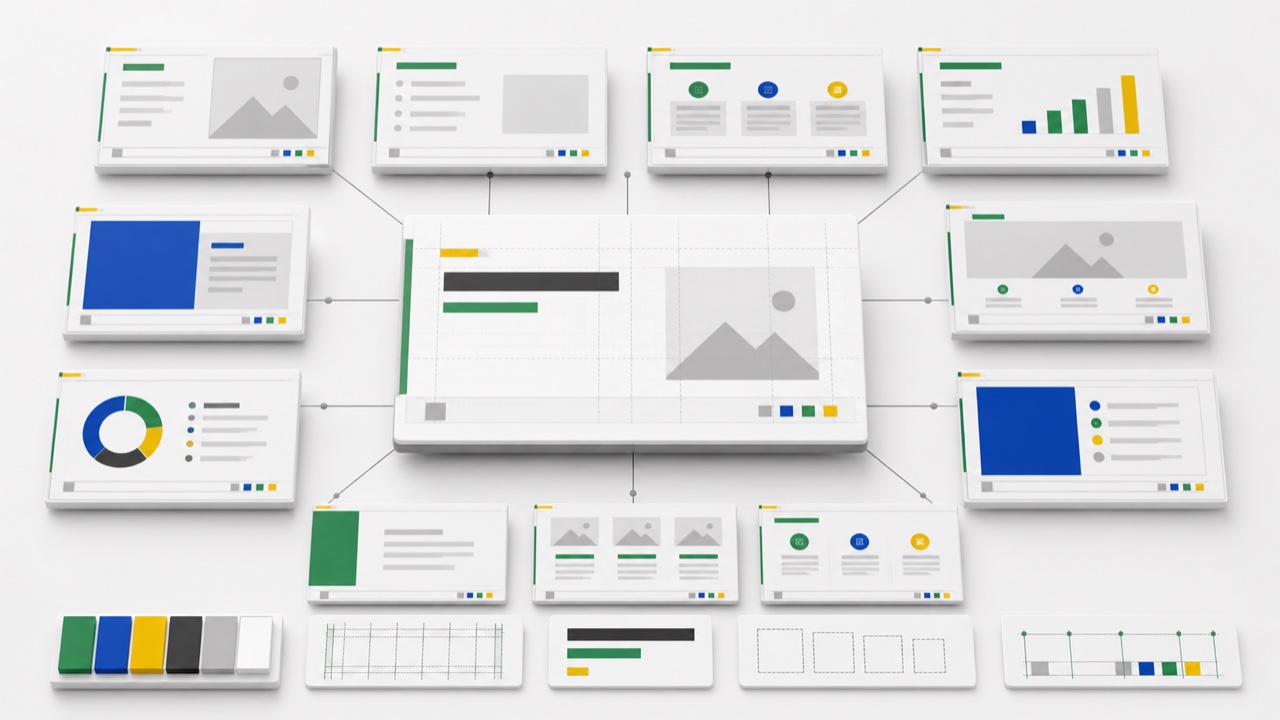
Use PowerPoint Slide Master for brand consistency by controlling the elements that should remain stable across a presentation: logo position, margins, theme colors, theme fonts, title hierarchy, footers, and reusable layouts. Put editable content in placeholders and reserve the master for rules. When users must manually align every new slide, the template is not doing enough work.
The top master supplies shared formatting, while its layouts define common slide types such as title, section divider, two-column content, chart, comparison, and closing slides.
Slide Master is best for:
It is not the right place for project-specific content, one-time charts, or a large library of nearly identical layouts.
Collect approved logo files, color values, typefaces, image guidance, footer requirements, and accessibility constraints. Resolve conflicting brand references before building slides.
Choose the intended aspect ratio before designing layouts. Changing it later can distort positioning and create unnecessary repair work.
Create a theme palette with enough contrast for text, backgrounds, charts, and data highlights. Define heading and body fonts that are available to the intended users.
Use consistent left, right, top, and bottom boundaries. Align title and content zones across layouts so switching layouts does not make the deck jump visually.
Start with the slide types teams actually use:
Add a layout only when it supports a repeated content need. A template with dozens of unclear choices can make consistency worse.
Placeholders carry layout behavior and make Reset useful. Create text, picture, chart, and table placeholders for the content users are expected to replace. Avoid drawing decorative text boxes where an editable placeholder is required.
Insert a long title, a realistic table, different image ratios, and a dense chart. A master that works only with short sample copy is not production-ready.
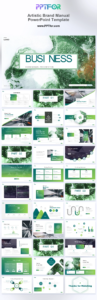
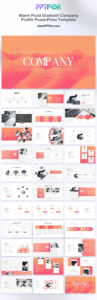
The Brand Guidelines PowerPoint Template and Artistic Brand Manual PowerPoint Template can document the rules, while the Warm Fluid Gradient Company Profile PowerPoint Template provides a practical company-deck application.
Documenting the rules and building the template are related but different tasks. A style guide explains what the brand requires; Slide Master turns selected rules into repeatable behavior.
Even a good master can be overridden. Use a lightweight governance process:
For a large collaborative deck, check for small spacing, font, and color overrides before they multiply across revisions.
Give the template to someone who did not build it and ask them to create a five-slide update without instruction. Observe which layouts they choose, where they add manual text boxes, and which placeholders they misunderstand. These actions reveal whether the layout names, sample content, and editing behavior are clear.
Then test the file in the actual collaboration environment. Check Windows and Mac if both are used, confirm font availability, open the deck in the required PowerPoint versions, and review a PDF export. A template is operational only when ordinary users can produce consistent slides without relying on the original designer.
Users cannot easily edit master objects in normal view. Keep required recurring elements on the master and user content in placeholders.
Near-duplicate layouts make the menu difficult to use. Prefer a compact system that supports flexible real content.
Objects with manually assigned colors will not update when the theme changes. Use theme colors for charts, shapes, and text whenever appropriate.
Light and dark layouts need deliberate text and accent behavior. Otherwise, imported or automatically generated content can become unreadable.
Users may not understand how to access layouts or reset placeholders. Include a short internal guide or sample deck, not visible explanatory copy inside every customer-facing presentation.
For editing individual layouts, see How to Edit PowerPoint Placeholders Correctly. For a complete brand-content structure, use the Brand Guidelines PowerPoint Template guide.
The Slide Master contains shared theme and formatting rules. Layouts beneath it define the arrangement and placeholders for specific slide types.
Reset returns placeholder content to the assigned layout's positions and formatting. Regular text boxes and shapes are usually unaffected.
Only if the brand requires it. Repeated logos can compete with content, so define size, position, contrast, and exceptions for cover or full-image slides.
No. Users can override many settings. A concise layout system, clear examples, and controlled distribution are as important as the master itself.
Get full access to our entire collection of premium PPT templates for one simple price.
Forget about complex tools or technical skills—just choose, edit, and download.