 Get full access to premium PowerPoint templates at a limited-time price.Get Now
When fonts change in a PowerPoint template, first identify whether the problem is a missing font, a theme-font mismatch, manual formatting, or a compatibility issue. Then replace the font at the presentation or theme level, not text box by text box. This prevents the same problem from returning on the next slide.
Font substitution matters because a replacement typeface can change line breaks, push text outside placeholders, alter hierarchy, and make a previously aligned presentation look unfinished.
The most common causes are:
Before editing, open Home > Replace > Replace Fonts. The list often reveals unexpected typefaces that are hidden in a chart, master layout, notes page, or unused object.
Match the original font's function rather than its name. Compare width, weight range, readability, and availability. A narrow display font should not be replaced with a wide body font if the layout must stay stable.
For files shared across many organizations, common system fonts reduce risk. For controlled brand environments, use the approved brand font and provide installation instructions.
Go to Home > Replace > Replace Fonts, select the missing font, and choose the replacement. Save a new version and reopen it to confirm the change persists.
Open View > Slide Master, then set the heading and body fonts in the theme. Theme fonts allow placeholders and newly inserted text to follow one rule. They also make future brand updates faster.
Select text that still looks inconsistent and reapply the correct layout or clear local formatting carefully. A text box can display the right font while still carrying a manual override that prevents theme updates.
Embedding can preserve appearance when the recipient lacks the font, but it is not always the best default. Some fonts prohibit embedding, embedded files are larger, and cross-version behavior can be inconsistent. Recipients may also be unable to edit embedded characters that were not included.
Use embedding when:
Avoid relying on embedding when a large team repeatedly edits the deck across platforms. In that case, an approved and widely available font family is usually more reliable.
Replacing the font is only the first step. Review:
Do not solve overflow by shrinking every font. Shorten the wording, widen the intended placeholder within the layout system, or divide the information across slides.
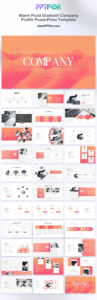
A template should remain usable after real content replaces the samples. The Warm Fluid Gradient Company Profile PowerPoint Template provides editable corporate layouts, while the Brand Guidelines PowerPoint Template and Artistic Brand Manual PowerPoint Template support typography and brand-rule communication.
When choosing a template, test it with your longest title, a realistic paragraph, a dense table, and the smallest required source note. Sample content is often shorter than real business copy.
For broader brand changes, follow How to Customize a PowerPoint Template. If the issue started after conversion, use PowerPoint Templates in Google Slides.
The font may be used in a master, chart, notes page, hidden object, or pasted element. Replace Fonts can identify it even when the text is not obvious on a visible slide.
Fonts already available across the team's operating systems are safest. The exact choice depends on the environment, so test the actual recipient computers instead of assuming compatibility.
PDF preserves the viewing appearance but removes normal PowerPoint editing. Keep a verified PDF for distribution while maintaining an editable source deck with controlled fonts.
The slide may contain manual font sizes, line spacing, character spacing, or placeholder overrides. Reapply the intended layout and inspect local formatting.
Get full access to our entire collection of premium PPT templates for one simple price.
Forget about complex tools or technical skills—just choose, edit, and download.