 Get full access to premium PowerPoint templates at a limited-time price.Get Now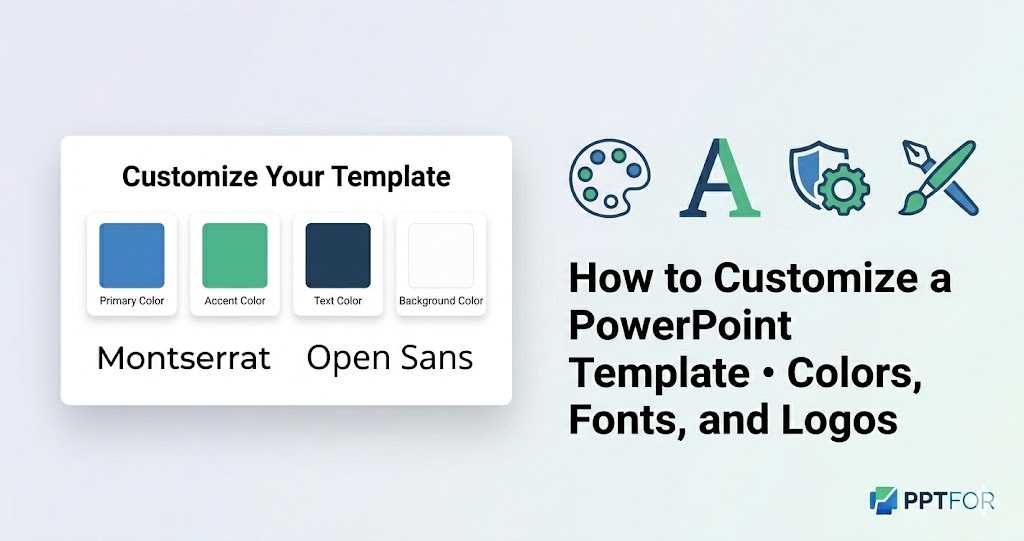
A PowerPoint template helps you save time, but it’s only useful if you can adapt it to your brand and message. Knowing how to customize colors, fonts, and logos keeps your decks consistent and professional.
In this guide, you’ll learn:
If you already have a template, you can skip to the step‑by‑step tutorial or the FAQ at the end.
Using a template “as‑is” often doesn’t match your brand. This can confuse audiences and make your deck look less professional.
Customizing a template helps you:
Templates in the PowerPoint Template Tutorials category are designed to be easy to edit and brand‑friendly.
The best way to change your template’s look is through the Slide Master, not by editing each slide individually.
Open the **Slide Master** view, then:
PowerPoint often ships with light, dark, or inverted themes. Try switching between them before creating custom colours from scratch.
Use your brand palette for primary colours and choose one or two accent colours for highlights. Avoid more than three colours per deck.
Your logo should appear consistently but not distract from the content.
Adding your logo to the Slide Master automatically places it on every slide, so you don’t have to insert it manually.
Usual locations are the top right or bottom right corner. Keep enough space around the logo so it’s easy to read.
Make the logo large enough to recognize, but not so big that it crowds the content. A light background logo often works well.
Once you’ve customized a template, you can reuse it for many decks.
Save one `.pptx` file as your “brand template.” Always start new presentations from this file.
Stick to a small number of layouts (Title, Section, Content, Image, Chart). Too many layouts make your deck look messy.
For recurring topics (monthly reports, sales pitches, board updates), base your decks on the same template so they feel familiar.
Templates from the PPTFOR downloads library are built to be fully editable, so you can customize them once and reuse them many times.
The easiest way is through the Slide Master. Update the main theme, accent colours, and font styles in the Slide Master, and PowerPoint will apply them to all slides.
Use a single branded template as your base file, restrict the number of layouts, and avoid mixing different fonts or colours. Templates in the PPTFOR downloads section are already optimized for easy branding and reuse.
Yes. You don’t need design experience to change colours, fonts, and logos. Start simple, then gradually refine your branding as you become more comfortable.
Customize the template once, then open it whenever you start a new presentation. Change the content while keeping the layout, colours, and fonts the same, so your decks all look like part of a single series.

Get full access to our entire collection of premium PPT templates for one simple price.
Forget about complex tools or technical skills—just choose, edit, and download.