 Get full access to premium PowerPoint templates at a limited-time price.Get Now
Learning how to edit PowerPoint placeholders correctly helps users customize templates faster without breaking the layout. Placeholders are not just empty boxes. They are part of the slide structure, and they are designed to keep spacing, alignment, and content balance more stable during editing.
Most template editing problems begin when users ignore placeholders and replace them with manually positioned text boxes or images. That approach may work on one slide, but it usually creates inconsistency across the rest of the deck.
Placeholders act as structured content zones inside a slide layout. They help control where text, images, charts, or other elements belong. When used properly, they reduce formatting issues and make multi-slide editing more consistent.
The Modern Clean PowerPoint Template 32 Slides is a good example of a template where placeholders help preserve clean spacing. For founders editing business content quickly, the Pitch Deck PowerPoint Template 30 Slides also gives a useful structure for placeholder-based editing.
Users often drag in new text boxes or images instead of using the original placeholder. That usually creates uneven spacing and makes later edits harder.
Even a strong template can break visually when a placeholder is overloaded with too much text or the wrong kind of image.
Placeholder use works best when the same content types stay in the same zones across multiple slides.
Edit a placeholder on the individual slide when only that slide needs different content. Edit the Slide Master or source layout when the same logo, font, footer, image frame, or text position must change throughout the presentation. This distinction prevents repetitive edits and keeps recurring decks consistent.
Before changing a master layout, duplicate the presentation and confirm which slides use that layout. A master-level change can affect many slides at once. After editing, review title placement, body-text wrapping, image crops, page numbers, and branded elements at normal presentation size.
For broader template changes, use the workflow in How to Customize a PowerPoint Template.
Placeholders help preserve the original layout, spacing, and visual consistency of the template. New objects often create alignment problems across the deck.
Yes. Many editable template workflows in Google Slides and Keynote still benefit from the same layout logic, especially when content is updated inside the intended structure.
Templates with clear layout systems, clean spacing, and obvious content zones are usually easiest to customize. You can compare examples in Business & Corporate and Startup & Pitch Decks.
Ignoring placeholders usually creates alignment problems, inconsistent spacing, and more manual editing work across the rest of the deck.


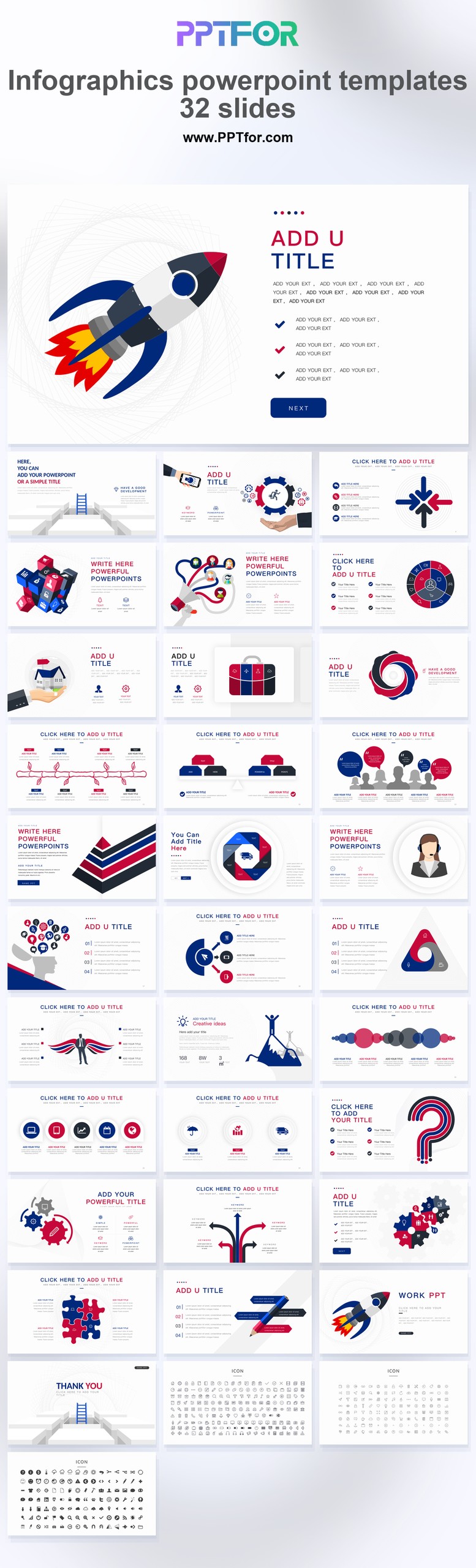
Get full access to our entire collection of premium PPT templates for one simple price.
Forget about complex tools or technical skills—just choose, edit, and download.