 Get full access to premium PowerPoint templates at a limited-time price.Get Now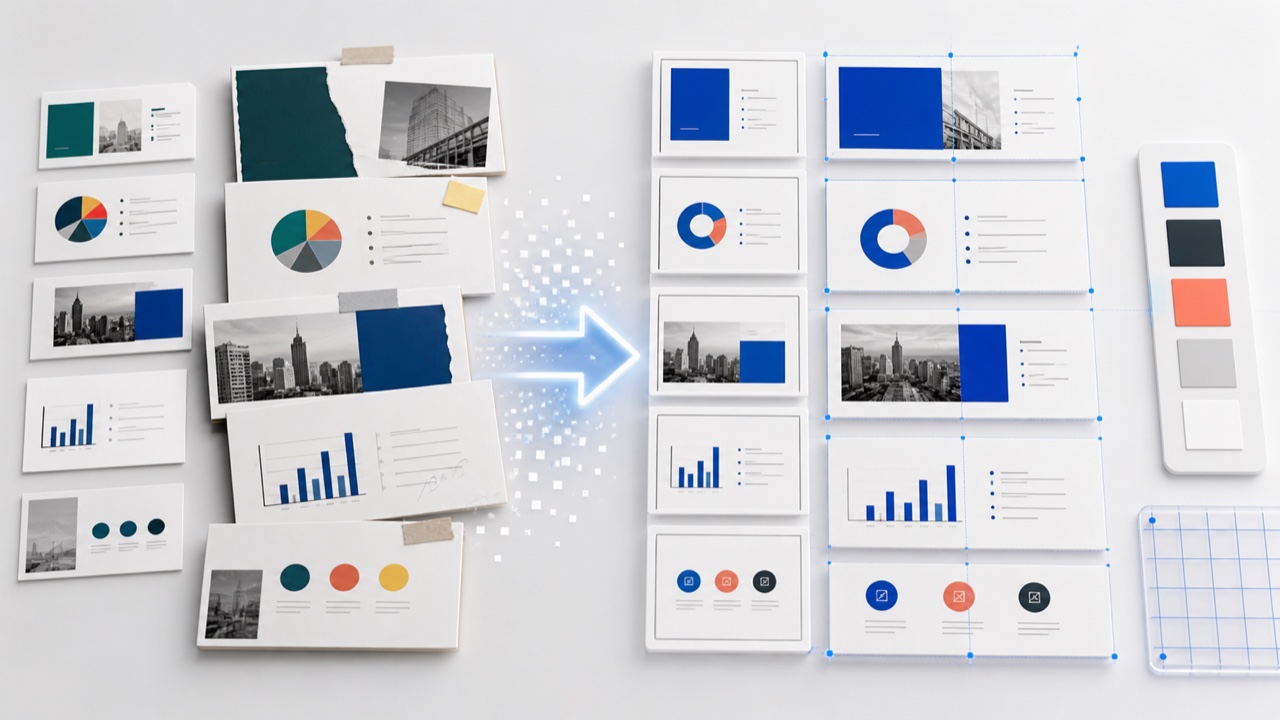
To apply a PowerPoint template to an existing presentation, start with a clean copy of the destination template, import the old slides with Use Destination Theme, then reassign the correct layout to each slide. Do not simply copy every object onto blank slides. That removes the layout logic and creates the formatting problems most teams are trying to avoid.
This workflow is useful when a company introduces a new brand template, a client sends an old deck, or several presentations need to use one consistent design.
Make two files: an untouched source deck and a working copy. Review the source for custom fonts, linked charts, videos, unusual aspect ratios, and objects placed outside placeholders. These elements are the most likely to change during migration.
Also decide what must be preserved. The information may be more important than the exact old layout. A new template often has a different grid, so forcing every object into its previous position defeats the purpose of changing the design.
Use this preflight checklist:
Create a new presentation from the template you want to use. This ensures the theme, Slide Master, layouts, colors, and fonts belong to the destination file from the beginning.
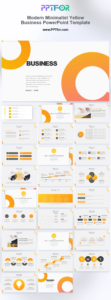
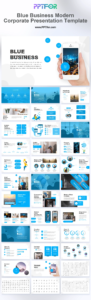
For a general corporate starting point, compare the Modern Business PowerPoint Template, Modern Minimalist Yellow Business PowerPoint Template, and Blue Business Modern Corporate Presentation Template.
In the destination file, use Home > New Slide > Reuse Slides or copy a short group of slides from the source. Select Use Destination Theme when you want the imported content to adopt the new template.
Importing five to ten slides at a time makes errors easier to identify. If you import a 70-slide deck all at once, it is difficult to tell whether a layout problem came from the master, a specific slide, or a manual override.
Select an imported slide, choose Home > Layout, and assign the closest destination layout. Then choose Reset. Reset moves placeholder content back to the intended positions without deleting the content.
If Reset creates a poor result, the source slide probably used manually drawn text boxes or shapes. Rebuild only that slide using the destination placeholders instead of moving every object by eye.
Use Home > Replace > Replace Fonts to substitute unavailable fonts consistently. Avoid correcting one text box at a time. If a brand font is required, confirm that every collaborator is licensed and able to install it before distribution.
Theme-aware objects should adopt the new palette. Objects with manually assigned RGB colors will not. Check charts, icons, lines, and diagrams for old brand colors. Use theme colors wherever possible so future brand changes can be applied centrally.
Charts may retain old fonts or colors. Tables can develop inconsistent cell margins, and images may crop differently inside new placeholders. Review these object types separately instead of assuming that a visually acceptable thumbnail means the slide is correct.
Run Slide Show view, inspect at 100% zoom, and export a PDF. The PDF is useful for spotting text overflow, missing fonts, cropped content, and inconsistent page elements. Ask a second reviewer to compare the working file with the original source.
Choose Use Destination Theme when the goal is a consistent new design. Choose Keep Source Formatting only when a slide's visual identity is part of the evidence, such as a customer screenshot, campaign example, or acquired-company brand asset.
Keeping source formatting for ordinary slides creates multiple hidden themes and makes future editing harder. A deck can look consistent at first while still containing several masters, color sets, and font definitions.
The destination font has different character widths, or the new placeholder is smaller. Shorten the copy, use the intended layout, or split the slide. Reducing text to an unreadable size is not a durable fix.
The objects use fixed colors rather than theme colors. Reassign approved theme colors, beginning with the most visible charts and diagrams.
The content may be placed in regular text boxes instead of placeholders. Create a new slide with the correct layout and paste the content into its placeholders.
Source themes were imported with the slides. Remove unused masters only after verifying that no remaining slide depends on them.
For detailed placeholder behavior, see How to Edit PowerPoint Placeholders Correctly. For theme-level brand changes, use How to Customize a PowerPoint Template.
Yes, but some slides will need layout reassignment because the old and new templates use different placeholder sizes and grids. Preserve the message first, then adapt the layout.
This usually happens when source formatting is retained. Import with the destination theme and remove unused masters only after the migration is complete.
Use Reset after assigning the correct layout. Review the result before continuing because manually positioned objects may need to be rebuilt inside placeholders.
Work by repeated slide type rather than chronological order. Fix all title slides, section dividers, comparison slides, and data slides in groups so the same decision is not made repeatedly.
Get full access to our entire collection of premium PPT templates for one simple price.
Forget about complex tools or technical skills—just choose, edit, and download.