 Get full access to premium PowerPoint templates at a limited-time price.Get Now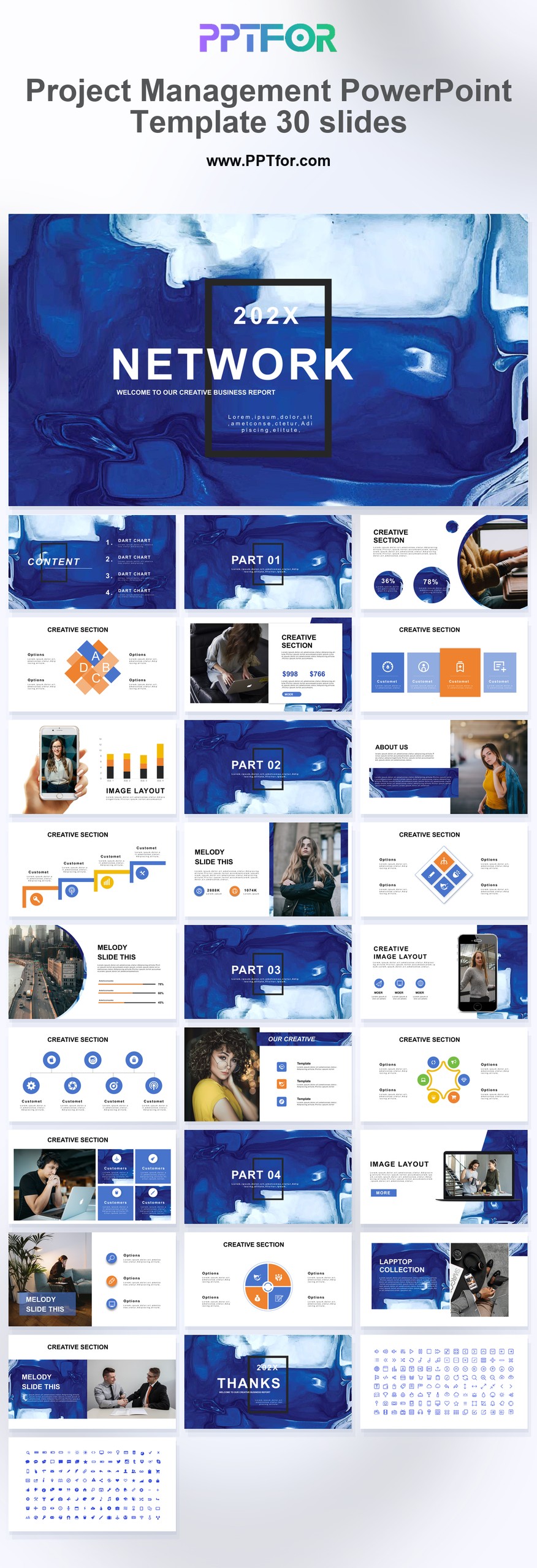
A project management PowerPoint template helps teams communicate a project plan, execution status, and decisions without rebuilding the same layouts for every meeting. A well-structured deck gives sponsors a concise view of scope, schedule, resources, budget, risks, and next actions while preserving enough detail for the delivery team.
This guide covers the slides to include, the difference between planning and status decks, and editable PPTFOR templates that can support each stage of a project.
A project management presentation should make the current state of the project easy to evaluate. The audience should understand:
The deck should not reproduce the entire project-management system. It should summarize the information required for alignment and decisions.
A planning deck is used at kickoff or during a major replan. It emphasizes objectives, scope, deliverables, work breakdown, timeline, resources, governance, and risks.
A project status deck is used during execution. It emphasizes progress, milestone status, schedule variance, budget, active risks and issues, decisions, and next steps.
Many projects need both. An editable template makes it possible to keep a consistent visual structure while changing the emphasis for each meeting.
Summarize the project name, sponsor, project manager, reporting date, purpose, and current phase. Keep this slide stable across meetings so the audience can orient quickly.
State the intended outcomes and how success will be measured. Use specific measures where possible, and distinguish the business outcome from the project deliverable.
Show what is in scope, what is out of scope, and the key deliverables. This reduces confusion when stakeholders request additional work during execution.
Break the project into major workstreams and identify the accountable owner for each one. A simple matrix is usually easier to read than a detailed organization chart.
Display the major phases, start and finish dates, and overlapping work. Keep task-level schedules in the project tool and use the presentation for the critical path.
List major milestones with target dates, current status, and completion evidence. Milestones should represent meaningful outcomes, not routine activities.
Use a consistent red, amber, and green status for scope, schedule, budget, resources, and quality. Add a short explanation beside any item that is not green.
Compare planned and actual cost or effort. Highlight material variance and explain whether it affects the forecast.
Separate future uncertainty from problems that have already occurred. Show probability, impact, owner, mitigation, and target resolution date for the most important items.
List external dependencies and decisions required from sponsors or other teams. Include the owner and deadline so the slide can drive action.
Summarize completed work, approved changes, and important lessons from the reporting period. This gives progress context beyond the percentage-complete figure.
Close with the next actions, owners, and dates. Put decision requests first when sponsor input is needed.
| Template | Best for | Useful features |
|---|---|---|
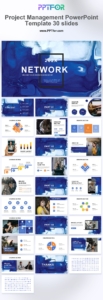
| Project Management PowerPoint Template – 30 Slides | Kickoffs, project plans, and recurring status meetings | 30 editable slides, vector graphics, drag-and-drop placeholders, and support for PowerPoint, Google Slides, and Keynote |
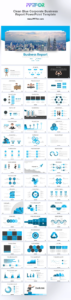
| Clean Blue Corporate Business Report PowerPoint Template | Sponsor and executive reporting | Corporate layouts for concise business and project reporting |
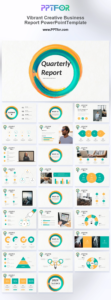
| Vibrant Creative Quarterly Report PowerPoint Template | Quarterly program and portfolio reviews | Editable report layouts for progress, results, and next-period priorities |
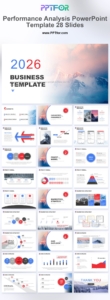
| Performance Analysis PowerPoint Template – 28 Slides | KPI, variance, and outcome analysis | 28 slides for business charts, performance metrics, and data insights |
Look for layouts that match the project’s governance rhythm.
The template should make updates repeatable. If every reporting cycle requires extensive layout changes, the deck is too decorative or too specialized for the workflow.
Lead with exceptions and decisions. Executives usually need less task detail and more clarity about impact.
Use this sequence:
For a deeper status-report framework, use the project status report PowerPoint guide. For release sequencing, see the product roadmap PowerPoint template guide. A quarterly report PowerPoint template can support broader program or portfolio reviews.
It is an editable presentation framework for communicating project objectives, scope, schedule, milestones, resources, budget, risks, status, and next steps. It supports meetings and decisions but does not replace the underlying project plan.
An executive update often needs 6 to 10 slides. A kickoff or detailed steering review may use 10 to 15 main slides plus an appendix.
The project health summary is usually the most important because it combines scope, schedule, budget, resources, quality, and key exceptions in one view. It should link directly to the risks and decisions discussed later.
Yes. Replace traditional phase and milestone views with release, sprint, backlog, velocity, dependency, and impediment layouts while keeping the executive health, risk, and decision sections.
Start with the Project Management PowerPoint Template, select the layouts required for your governance meetings, and keep those layouts consistent from one reporting period to the next. Consistency reduces formatting work and makes status changes easier for stakeholders to recognize.
Get full access to our entire collection of premium PPT templates for one simple price.
Forget about complex tools or technical skills—just choose, edit, and download.